


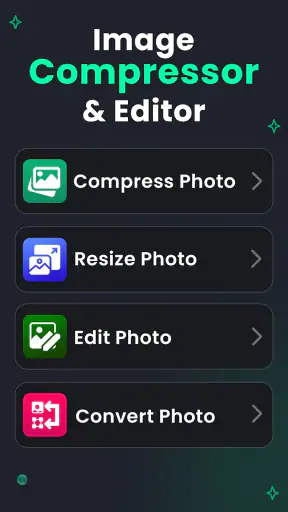
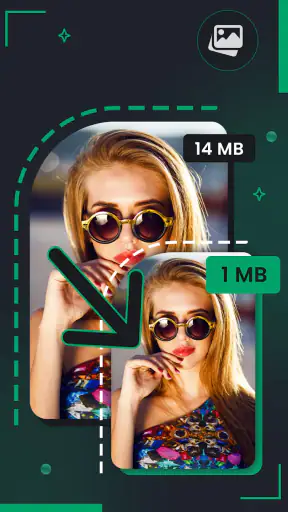
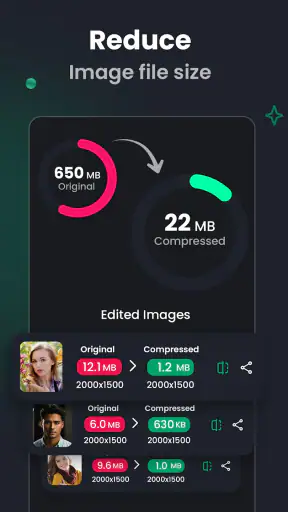
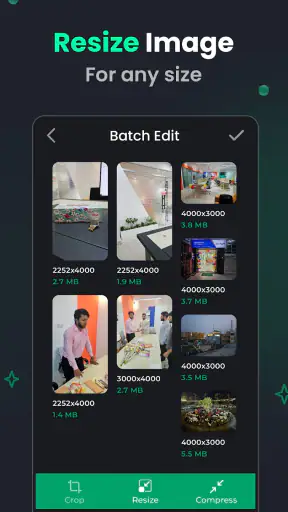
I like photo tools that solve one annoying problem without turning the phone into a miniature editing studio. JPEG Image Compressor & Resize takes that practical approach. It is a free photography app from DictionaryAndTranslator for compressing, resizing, cropping, and converting images, and my overall impression is that it is most useful when the goal is to make a picture smaller, lighter, or easier to share rather than creatively transform it.
That distinction matters. This is not the app I would choose for filters, layers, retouching, or detailed design work. I would reach for it when a photo is too large for an upload form, when several images need more manageable dimensions, or when I want to change an image before sending it. In that narrow but common role, JPEG Image Compressor & Resize is a focused utility rather than a full photo editor.
What stands out when using it for everyday photo work
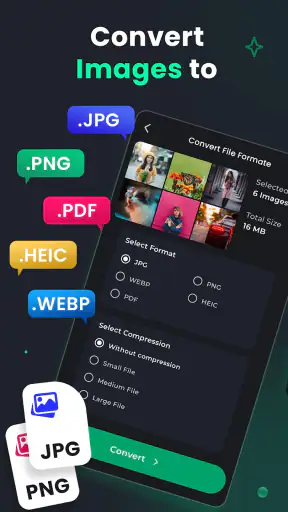
The strongest part of the app is the combination of jobs it puts together. Compression reduces the file burden, resizing changes the image dimensions, cropping removes unwanted edges, and conversion helps prepare a picture in a more suitable format. Those actions are related, but they are not identical, and having them in one photography app is more convenient than jumping between a gallery editor, a browser tool, and a separate converter.
I find that especially useful before uploading documents or images through services that impose file limits. A photo taken with a modern phone can be unnecessarily large for a simple form. Reducing its dimensions first and then compressing it is often more sensible than repeatedly trying to send the original. The app’s purpose fits that situation well because it is built around preparation and delivery, not decoration.
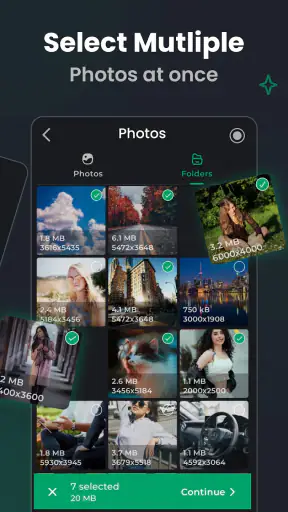
A second practical scenario is sharing a group of holiday pictures with someone who does not need the full camera originals. I would crop out distracting borders, resize the images to something suitable for a phone screen, and compress copies for messaging. The important habit here is to keep the originals untouched and work on duplicates. Compression and resizing are useful, but they are still compromises when image quality matters.
The app’s store rating is a 4.7 average from around 31 thousand ratings, and it has passed one million installs. Those figures do not replace personal testing, but they do suggest that the simple use case has found a substantial audience. I can understand why: many people do not need a complicated editor, yet they regularly need to make a photo smaller.
The interface experience is best judged by how quickly the app gets out of the way. A utility like this succeeds when I can select a picture, choose the operation I need, adjust the result, and save or share it without having to learn an elaborate workflow. The current version, 3.1.0, is available for devices running Android 8.0 or later, so it is aimed at a broad range of still-supported phones rather than only recent hardware.
One useful way to think about the controls is in terms of the order of operations. Cropping changes the composition, resizing changes the pixel dimensions, and compression changes how efficiently the result is stored. If I compress before cropping, I may spend time preserving information that I am about to remove. For a cleaner workflow, I would crop first, resize second, and compress last. That sequence is not just tidy; it helps avoid unnecessary processing and makes the final file easier to judge.
Compression is more useful when the target is clear
The word “compress” can sound like a single button that magically makes every photo better suited to every purpose, but the right result depends on where the image is going. A picture intended for a quick message can tolerate more reduction than one being printed or archived. I would therefore avoid treating the smallest possible file as automatically the best result.
For online forms, the practical target is usually a file that is accepted while remaining readable. For social sharing, the target is often a reasonable balance between visible detail and upload convenience. For keeping a personal archive, I would not use a compressed copy as the only version. This app is helpful in all three situations, but the decision about quality still belongs to the user.
A less obvious advantage is that resizing can sometimes be more important than compression. If a picture has far more pixels than the destination needs, reducing its dimensions can make a larger difference than aggressively lowering quality. I would try a moderate resize before pushing compression too far, particularly for photos containing text, fine patterns, or faces. That approach often produces a result that looks cleaner than a tiny file made by heavy compression alone.
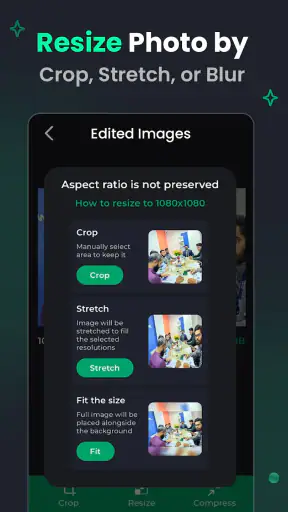
There is also a useful distinction between changing a photo’s shape and changing its size. Cropping is the right choice when the subject is surrounded by empty space or when a particular frame is required. Resizing is the right choice when the whole image should remain visible but needs smaller dimensions. Using one as a substitute for the other can lead to disappointing results, so I appreciate that the app presents these as separate tasks rather than treating every problem as compression.
Conversion helps, but it does not replace a complete image workflow
Having conversion alongside compression and resizing makes the app more versatile than a single-purpose file reducer. I can see the value when an image needs to be prepared for a service that handles one format more reliably than another. It is also convenient when I receive an image in a format that is awkward for the next step and want a more familiar file type.
Still, conversion should not be confused with quality improvement. Changing the format does not restore detail already lost in an earlier edit, and converting repeatedly can create avoidable degradation depending on the formats involved. My recommendation is to keep one original, perform the crop and resize once, choose the destination format deliberately, and avoid making a chain of converted copies.
This is where the app feels strongest as a finishing tool. It can prepare a photo for a specific practical purpose, but it is not designed to manage a large photographic library or replace a serious editing workflow. I would use it after selecting the image I need, not as the central place where I organize years of pictures.
The meaningful weakness is control versus simplicity
The same simplicity that makes this app approachable can become a limitation for demanding users. Anyone who wants detailed control over color, sharpening, metadata, export profiles, or advanced retouching will probably find the experience too narrow. The app’s emphasis is on basic file and dimension changes, so it should not be judged as though it were competing with a professional editor.
I also would not choose it when the main task is creative editing. If I want to remove an object, build a collage, add typography, adjust lighting precisely, or apply a consistent look across a project, a full-featured editor is a better fit. JPEG Image Compressor & Resize can prepare the finished image, but it is not the place I would do all the creative work.
Another point worth considering is the presence of in-app purchases ranging from $0.99 to $99.99 per item. The app itself is free, which makes it easy to try, but the purchase range means I would pay attention to what is included in the free experience and what may require payment before building a regular workflow around it. For someone who only occasionally needs to reduce a picture, the free starting point may be enough. For frequent use, it is sensible to check the available options inside the app before assuming every tool is unrestricted.
I would also be cautious with important originals. Any app that changes image dimensions, crops a frame, or converts a file should be used on a copy when the source matters. That is a general photography rule, but it is particularly relevant here because the app is designed to make direct, practical changes to image files. A small amount of preparation—duplicating the original and naming the edited copy clearly—can prevent a lot of regret later.
The Everyone content rating is another reason the app feels suitable for general household use. A parent preparing pictures for a school form, a student submitting an assignment, or a relative trying to send a large photo can understand the basic purpose without needing specialist photography knowledge. That does not make every result automatically perfect, but it lowers the barrier to solving a very ordinary phone problem.
Who will get the most value from it
I would recommend this app to people who regularly encounter file-size limits, need quick image preparation, or want a simpler alternative to a large editing suite. It is particularly well suited to users who think in practical outcomes: “make this photo smaller,” “remove this edge,” “fit this image into the required dimensions,” or “change it into a more convenient format.” Those are clear tasks, and the app’s feature set is closely aligned with them.
It is also a good companion for occasional users who do not want to learn a complicated editor. If I only need to modify a picture once every few weeks, a compact utility can be less intimidating than an application filled with professional panels. The free price makes trying it straightforward, while the broad Android compatibility means it is not limited to the newest devices.
People who send images through email or messaging may appreciate it for a different reason: control. Instead of relying on a platform to resize a picture automatically, I can prepare a copy myself and decide how much detail to retain. That is useful when the recipient has limited storage or a slow connection, although I would still keep the original for later use.
On the other hand, I would skip it if my priority is artistic editing, batch-based professional production, or advanced image management. A dedicated editor is better for creative adjustments, and a desktop workflow is better when I need repeatable settings, careful color handling, or a large collection of files. This app is not a universal replacement; its value comes from doing a smaller set of jobs with less distraction.
How it compares with the usual alternatives
The most obvious alternative is the editor already built into a phone’s gallery. That editor may handle basic cropping and resizing well enough, so someone who only needs those actions might not need another app. JPEG Image Compressor & Resize becomes more appealing when compression and conversion are part of the same task, especially when the gallery tool does not offer enough control over the final file.
Browser-based image compressors are another option. They can be convenient on a computer, but they require uploading the image to a website and then downloading the result. For a private photo, a document image, or a picture that I simply want to prepare on the phone, a dedicated app can feel more direct. I would still consider the browser route when I am already working at a desktop or handling many files at once.
Full photo editors offer more creative power, but that power can be unnecessary overhead. If my only goal is to reduce a picture for an upload, opening a large editor may slow me down rather than help. Conversely, if I need sophisticated adjustments, choosing this focused utility instead would leave me switching between apps. The best choice depends on whether the task is file preparation or image creation.
There is also a trade-off between convenience and precision. A specialized compressor and resizer can make routine changes approachable, while a professional tool may offer finer control over every export decision. I would choose this app for speed and simplicity, then move to a more advanced option when the image has commercial, archival, or print importance.
My practical workflow and final recommendation
My preferred workflow is simple: I keep the original, select a copy, crop only if the framing needs correction, resize according to the destination, and compress at the end. I then inspect the result at normal viewing size rather than judging only by the file size. If the image contains small writing, hair, foliage, or other fine detail, I check those areas carefully because they reveal quality loss sooner than a broad sky or a plain wall.
For a form or application, I would prioritize legibility over maximum reduction. For a casual message, I would accept a smaller file if the subject remains clear. For an image I may print later, I would avoid using the compressed version as my master copy. These small decisions make the app more effective than simply selecting the strongest reduction available.
DictionaryAndTranslator has positioned this as a free photography app with a very clear practical purpose, and I think that purpose is convincing. The combination of compression, resizing, cropping, and conversion covers the routine preparation jobs that phone galleries and full editors do not always handle together. The app has a 4.7 average and more than one million installs, which fits my impression that it addresses a common need rather than a niche curiosity.
My verdict is positive, with a clear boundary. Use it when you need a photo ready for sharing, uploading, or storage; do not expect it to become your main creative editor. As long as I preserve the original and choose the final quality based on the destination, it is a useful, approachable tool for everyday image preparation. Its free entry point, Everyone rating, and support for Android 8.0 and later make it easy to consider, while the optional purchases mean frequent users should review the available features before committing to it as their regular solution.


